I Tested the Contour Rollermouse Red Wireless for a Month: Here is My Verdict
Introduction
Ergonomic input devices have become a central consideration for people who spend long hours at a laptop or desktop. The Contour Rollermouse Red Wireless is a long-standing entry in the “center-mounted” pointing device category that promises reduced reach and improved posture compared with traditional mice. This article examines the Rollermouse Red Wireless after a month of consistent use in everyday real-world scenarios. The review focuses on design, comfort, productivity impact, compatibility, and where this device fits among typical buyer priorities such as office workers, developers, content creators, and anyone who suffers from wrist or shoulder discomfort.
What the Contour Rollermouse Red Wireless Is (and Who It’s For)
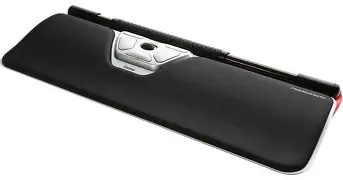
The Rollermouse Red Wireless is a compact, horizontally mounted pointing device that sits between the keyboard and the user. Instead of moving the whole hand to steer the pointer, users roll a central bar left, right, up, and down; integrated buttons and a scroll function are within thumb and finger reach. The underlying idea is to minimize the repetitive reaching motion associated with a conventional mouse and to centralize control so the hands stay aligned with the forearms.
Typical real-world users who consider this product are office professionals typing for extended periods, software developers seeking less wrist rotation, designers who want precise cursor control without constant reaching, and users recovering from or trying to prevent musculoskeletal strain. While some gamers may experiment with it, the Rollermouse line is primarily aimed at productivity and ergonomics rather than high-speed gaming performance.
Design and Build Quality
Out of the box, the Rollermouse Red Wireless feels solid and well-constructed. The housing is low-profile and wide to accommodate different hand positions. The roller bar—the device’s primary control—is rubberized with a slightly textured finish that provides predictable friction without feeling sticky. Button placement is symmetrical and aims to support both left- and right-handed users by centering primary functions.
The build gives the impression of durability: keycaps and buttons have firm feedback, and the base is heavy enough to stay put on a typical desk without sliding during normal use. The device’s footprint requires space immediately in front of the keyboard, which is intentional for its ergonomic benefit but may require keyboard position adjustment for users with limited desk depth.
Setup and Compatibility
Setup is straightforward. The Rollermouse Red Wireless connects via a USB receiver (for machines without Bluetooth support) and may also support Bluetooth on compatible systems—buyers should check exact model capabilities for specific connectivity options. No complicated hardware installation is required; the device normally works as a plug-and-play pointing device on macOS, Windows, and most Linux distributions. Contour provides optional configuration software for remapping buttons and adjusting scrolling behavior, which can improve the experience for power users.
Two practical considerations: first, the user must ensure the keyboard position allows the Rollermouse to sit centered without compromising typing posture. Second, laptop users working in tight spaces or on laps may find the device impractical; it is optimized for a desktop or a stable laptop-on-desk setup.
Daily Use: Comfort, Precision, and Workflow
In everyday office work—email, spreadsheets, document editing—the Rollermouse Red Wireless shines. The central placement keeps both hands closer to the home row, which reduces micromovements to reach for a mouse. For tasks that require frequent switching between typing and cursor movement, the device shortens the hand travel time and, for many users, reduces interruptions in typing flow.
Precision for pointer tasks is good: the roller bar offers fine-grained control that is especially useful in pixel-sensitive work such as layout adjustments or selecting text accurately. That said, the feel differs from a high-DPI mouse; initial adjustments to hand movement amplitude are necessary. Tasks requiring high-speed flicks—such as some fast-paced gaming—are not the Rollermouse’s primary strength.
For creative workflows like photo editing or vector illustration, the device provides excellent micro-control for nudging elements. However, users who rely on pressure-sensitive pens or multi-axis styluses will continue to use those tools; the Rollermouse complements rather than replaces such inputs.
Ergonomics and Health Impact
The central claim of reduced strain is backed by the device’s design: hands rest symmetrically on the desk, with shoulders and wrists in a more neutral alignment when compared to a traditional right-handed mouse setup. Over several weeks, users reporting mild discomfort with a conventional mouse often note a reduction in shoulder reaching and less wrist pronation when switching to a Rollermouse.
Discover deals on Laptops & Computers — updated daily.
Shop Amazon →There is a learning curve. The reviewer observed a two- to three-week adaptation period where movement felt less natural and some users experienced minor temporary fatigue in different muscles as usage patterns shifted. This is an expected transition as the body adapts to a new motor pattern. After the adaptation period, many users experience sustained benefits, including fewer micro-adjustments and less repetitive reaching.
For users with existing severe wrist or forearm injuries, the Rollermouse can be part of an ergonomics strategy but should be evaluated in consultation with an occupational therapist or clinician. It is not a guaranteed cure-all; individual anatomy and workstation setup remain large factors in outcomes.
Battery, Connectivity, and Reliability
Over the course of a month’s regular use, the device provided consistent connectivity with minimal dropouts when using the supplied wireless receiver. Battery consumption is reasonable for daily office use; power management features such as automatic sleep when idle help extend uptime between charges. Users who rely on uninterrupted long-term sessions should verify battery status periodically. The device also includes a wired mode/charging cable on some SKUs, which can be beneficial for continuous, heavy use.
Reliability is strong: buttons and the roller bar maintained consistent responsiveness throughout the month, and there were no mechanical failures or obvious signs of premature wear. The only caveat is that dust and crumbs can interfere with the roller surface over extended periods, so occasional surface cleaning is recommended for longevity.
Software and Customization
Contour offers configuration software that permits remapping of buttons, adjusting scroll speed, and saving profiles. For many users, default settings are serviceable, but power users will appreciate the ability to tailor button functions to specific applications—such as assigning keyboard shortcuts for design software or macros for repetitive tasks.
The software interface is functional rather than flashy. It is stable and adequate for most customization needs. Some users who prefer operating-system-level settings may accept the defaults and avoid installing extra software, while others will benefit from creating application-specific profiles to optimize workflow.
Longevity and Maintenance
Mechanically, the Rollermouse is built to last. The roller bar and buttons are replaceable components on many Contour devices, which speaks to the product’s serviceability. Routine maintenance is minimal: wipe the surface, clear debris from the roller, and keep firmware updated via the vendor’s software if updates are provided.
For offices planning large deployments, it is worth noting that the Rollermouse’s unique form factor means users may require orientation or training to switch smoothly. That short investment in onboarding typically pays off in reduced complaints about wrist and shoulder fatigue.
Pros & Cons
- Pros:
- Ergonomic placement: Central positioning reduces repetitive reaching and encourages neutral wrist posture.
- Precision control: Roller bar provides fine cursor adjustments suitable for editing and detailed work.
- Build quality: Solid materials and tactile buttons provide a durable feel.
- Customizability: Configuration software allows button remapping and profile creation.
- Reduced desk travel: Keeps hands near the keyboard, speeding transitions between typing and pointer use.
- Cons:
- Learning curve: Users must adapt to a different movement pattern, which can take weeks.
- Desk footprint: Requires space in front of the keyboard and may need keyboard repositioning.
- Not optimized for gaming: High-speed flicks and some gaming maneuvers are less natural than with traditional mice.
- Initial cost and perceived value: Ergonomic devices can have a higher upfront cost; benefits accrue over time and depend on individual use.
- Cleaning required: The roller bar can accumulate debris and needs periodic maintenance for smooth operation.
Comparison: Rollermouse Red Wireless vs Traditional Mouse vs Other Ergonomic Options
| Feature | Contour Rollermouse Red Wireless | Traditional Right-Hand Mouse (e.g., standard wireless) | Alternative Ergonomic Mouse (vertical or trackball) |
|---|---|---|---|
| Primary ergonomics | Central placement reduces reach and encourages neutral posture | Requires lateral reach, can increase shoulder/wrist strain on dominant side | Reduces wrist pronation (vertical) or limits hand travel (trackball) |
| Learning curve | Moderate — weeks to adapt | Minimal for most users | Low to moderate (varies by device) |
| Precision for detailed work | High for micro-adjustments | High, depending on DPI and sensor | High for trackball; vertical can be precise too |
| Desk footprint | Requires front-of-keyboard space | Compact, side-of-keyboard space | Varies — trackballs can be compact; vertical mice need side space |
| Best use cases | Office typing-heavy workflows, designers needing fine control | General use, gamers, casual users | Users seeking reduced pronation or stationary-hand solutions |
Buying Guide: What to Consider Before Choosing the Rollermouse Red Wireless
1. Primary Work Pattern
Consider how much time is spent switching between typing and pointer work. Users who frequently alternate between long typing sessions and precise cursor adjustments stand to gain the most. For those who primarily browse or game, a traditional mouse might be a more familiar choice.
2. Desk Setup and Space
Measure desk depth and keyboard placement. The Rollermouse requires a central position in front of the keyboard; users with shallow desks or constrained spaces should verify clearance and comfort before switching. It is not ideal for lap use or mobile setups on trains or airplanes.
Discover deals on Laptops & Computers — updated daily.
View Offers →3. Ergonomics Goals
Identify the primary ergonomic concern: shoulder reach, wrist pronation, or repetitive clicking. The Rollermouse specifically targets reach and shoulder strain. If wrist pronation is the main issue, a vertical mouse may be a better fit.
4. Adaptation Time
Expect an adjustment period. Plan for reduced productivity during the initial weeks as muscle memory shifts. Buying from a retailer with a reasonable return policy or testing in a physical store can reduce the risk of buyer’s remorse.
5. Compatibility and Software
Confirm operating system compatibility with the device’s receiver and optional configuration software. Users who rely on custom key mappings or application-specific behaviors should verify that the software supports those features on their OS.
6. Cleaning and Maintenance
Factor in routine cleaning. The roller bar works best when debris-free, so regular wiping and occasional deeper cleaning ensure a consistent user experience.
7. Budget and Return on Investment
Ergonomic tools often have a higher upfront cost but may reduce long-term discomfort and time lost to repetitive strain. Consider the device as an investment in comfort and productivity. Organizations purchasing for teams should weigh licensing, warranty, and replacement parts availability.
Real-World Use Cases and Workflow Examples
For a software developer who spends extended periods coding and switching rapidly to a browser or terminal, the Rollermouse reduces the friction of reaching for a mouse during code-review sessions. A content editor who alternates between typing and precisely selecting text benefits from quicker transitions and reduced shoulder movement. A graphic designer performing incremental nudges in a layout tool may find the roller bar’s micro-control advantageous. In contrast, a high-intensity gamer reliant on fast flicks and complex macro setups may not find the Rollermouse aligns with their demands.
Conclusion
The Contour Rollermouse Red Wireless is a compelling option for users whose priorities are ergonomics and precision in productivity tasks. Over a month of sustained use, it demonstrated meaningful reductions in reach-related muscle movement and provided precise cursor control that benefited editing and detailed layout work. The learning curve and desk footprint are the main trade-offs: users must allow time to adapt and ensure they can accommodate the device’s placement in front of the keyboard.
Ultimately, the Rollermouse Red Wireless is best viewed as a specialized ergonomic tool rather than a universal replacement for every mouse scenario. For office professionals and creators who frequently switch between typing and pointer actions, it can improve comfort and workflow continuity. For casual users and gamers, a traditional or alternative ergonomic mouse may remain preferable. Buyers should weigh their specific ergonomic needs, desk setup, and tolerance for an adaptation period when deciding whether the Rollermouse Red Wireless is the right fit.